How to install Code::Blocks GCC Compiler / C Compiler / OpenSource Cross Platform C++ compiler Correctly in your machine(windows) / computer / pc
Open Source Cross Platform IDE for C++ / Code Blocks / C Compiler
Many of us downloaded the code blocks (codeblocks-10.05-setup.exe) 23 MB version which doesn't have any compilers , consequently all default installation doesn't give you the correct result that you have been expecting.
The correct version you should download
codeblocks-10.05mingw-setup.exe which is approximately 73 MB and has GCC compilers ; which will give you the correct result that you have been expecting for.
Code Block C Compiler (light-weight) Installation Settings :
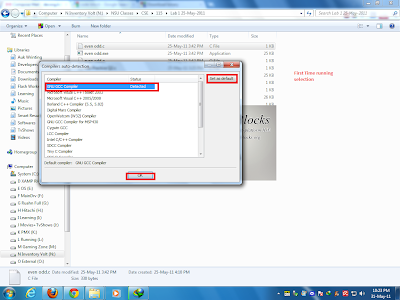 |
| First Screen After Installing Code::Blocks |
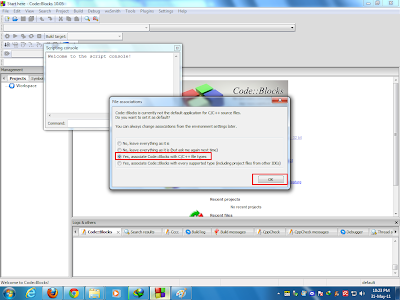 |
| Click on that radio button and hit ok. |
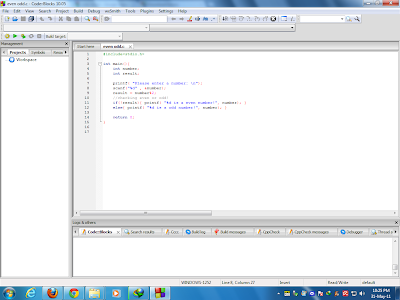 |
| After Configuration First look of the Code::Blocks IDE |
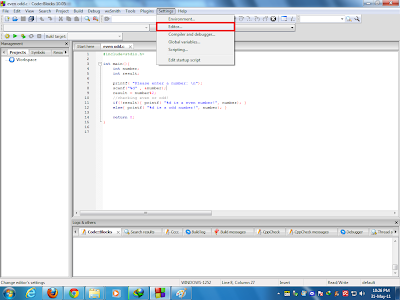 |
| Making the Editor better - Font Size , Fonts etc... |
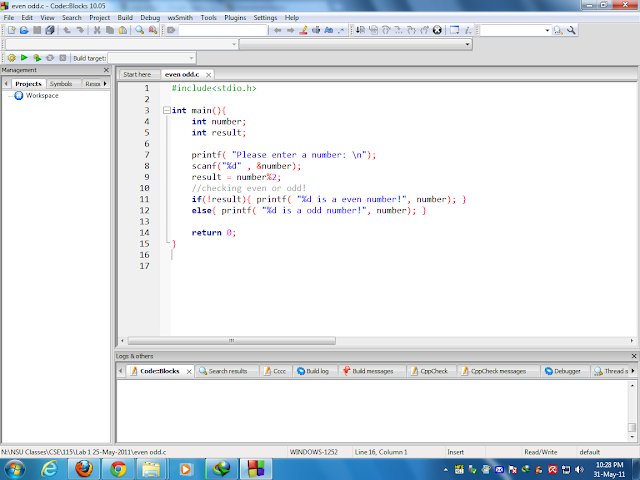 |
| see now you have better fonts and looks than before. |
Now you can run your c++ or c codes from the Built Menu item.
Suppose you had installed that correct version but still your code isn't compiling , now what should you do?
Goto [Settings] -> [ Compiler and Debugger ]
You should check and follow below images to
configure your
code blocks compiler.
 |
| Select those options as shown. |
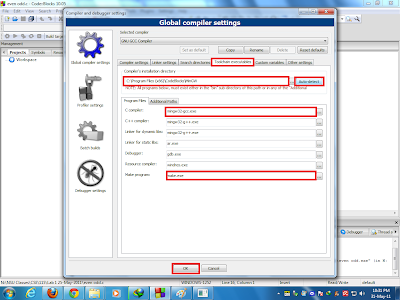 |
| Select as shown and hit ok. |
Seo Texts:
Code :: Blocks , C Compilers Problem , Code :: Blocks Installation Process Step by Step , GCC Complier Problems , C++ Cross Platform Free IDE


